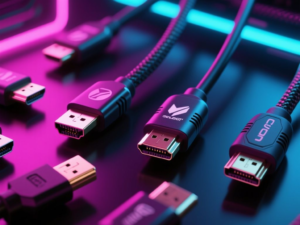
HDMI cables are not all created equal. Despite their similar appearance, the differences in specifications can greatly affect the performance of your audio and video setup. With multiple revisions of HDMI technology over the years, it is essential to understand how these cables work and how to identify the right one for your needs.
Identifying the Right HDMI Cable
The challenge with HDMI cables lies in their uniformity. Most cables look alike, and while manufacturers may alter colors or sheathing, the connectors have remained unchanged. This means that an HDMI cable from 2010 can still connect to a device released in 2025. However, older cables may not support the demands of newer technology, such as a 120Hz 4K OLED TV.
HDMI Versions and Their Capabilities
HDMI has undergone several major revisions, each enhancing bandwidth capabilities. For instance:
- HDMI 1.4: Supports 4K at 30Hz, suitable for movies but not for gaming.
- HDMI 2.0: Increases support to 4K at 60Hz and introduces mainstream HDR.
- HDMI 2.1: Offers the highest bandwidth, enabling 4K at 120Hz, 8K support, and advanced features like Variable Refresh Rate (VRR) and enhanced Audio Return Channel (eARC).
These revisions have led to various cable classifications, such as High Speed and Ultra High Speed HDMI, each catering to different performance needs.
Symptoms of Using the Wrong HDMI Cable
Using an inadequate HDMI cable can lead to several issues. Symptoms include:
- Inability to achieve the maximum resolution or refresh rate supported by your display.
- Missing features such as VRR or ALLM on gaming consoles.
- Degraded audio quality or failure of eARC functionality.
- Flickering, random black screens, or HDMI handshake failures.
If your setup works at lower settings but fails at higher ones, it is likely due to a cable that cannot handle the required specifications.
How to Identify Your HDMI Cable
To determine the specifications of your HDMI cable, check the sleeve or connector for any imprints indicating its type, such as “Ultra High Speed.” If no information is available, the cable may not meet modern standards. Additionally, some newer cables may include a QR code for certification verification.
If you still cannot identify the cable, testing it in your setup is a practical approach, but avoid permanent installation until you confirm its compatibility. Remember, any intermediate devices in your setup must also support the necessary HDMI standards to avoid signal degradation.
This article was produced by NeonPulse.today using human and AI-assisted editorial processes, based on publicly available information. Content may be edited for clarity and style.